
How to Edit a PDF with Sejda: A Beginner’s Guide
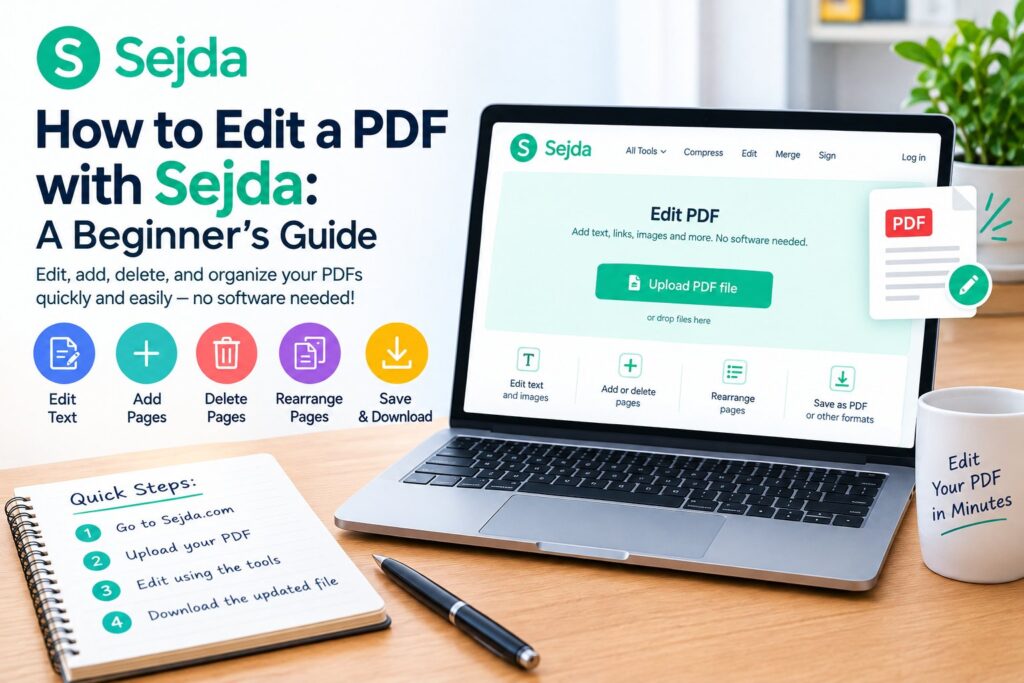
If you’ve ever needed to fix a typo, swap out an image, or merge a stack of PDFs before a deadline, you know how annoying clunky PDF software can be. Sejda is one of the simpler options out there, a web-based editor with a companion desktop app that lets you edit, merge, split, compress, and sign PDFs without installing anything heavy or wrestling with a confusing interface.
This guide walks through what Sejda actually does, how to use it for common tasks, and where it falls short so you know what to expect before you start.
What Is Sejda?
Sejda is a PDF editing tool available both as a browser-based app and as downloadable software for Windows, Mac, and Linux. It covers the tasks most people actually need: editing text and images, merging or splitting files, compressing large PDFs, filling out forms, adding e-signatures, redacting sensitive content, and running OCR on scanned documents so the text becomes searchable.
It’s built around a straightforward idea: most people don’t need Adobe Acrobat’s full toolkit; they just need to make a quick edit and move on. That focus on simplicity is Sejda’s biggest strength and, according to several reviewers, also its limitation. It handles everyday editing well but doesn’t offer the deep formatting control that power users or design teams sometimes need.
Step 1: Choose Web or Desktop
Start by deciding which version fits your workflow. The web app works in any browser and requires no download, which is handy for a one-off edit on a shared computer. The desktop app installs locally and tends to feel faster for repeated use, since files don’t need to upload and download each time.
Both versions offer the same core editing tools, so the choice mostly comes down to convenience.
Step 2: Upload Your PDF
Once you’re in the editor, upload the file you want to work on. Sejda pulls files from your device, or you can connect cloud storage like Google Drive. The desktop app opens files directly from your hard drive, which skips the upload step entirely.
Step 3: Edit Text and Images
Click into any text block to edit it directly; no need to recreate the whole page. You can adjust font size, add new text boxes, insert or replace images, and use the whiteout tool to cover up content you want removed, like an old signature or an outdated figure.
This is where Sejda earns its reputation as an easy option. The interface highlights editable areas as you hover, so you’re not guessing which parts of the document can actually be changed.
Step 4: Organize, Merge, or Split Pages
Need to combine several PDFs into one, or pull specific pages out of a longer document? Sejda’s page tools let you rotate, crop, reorder, delete, and extract pages, plus merge multiple files or split one file into separate documents. This is one of the most-used parts of the tool for people managing contracts, reports, or scanned paperwork.
Step 5: Add Signatures, Forms, or Protection
If the document needs a signature, Sejda lets you draw, type, or upload one and place it anywhere on the page. You can also fill out existing form fields, create new fillable forms, add password protection, or apply encryption before sharing a sensitive file.
Step 6: Compress and Export
Large PDFs, especially ones with scanned images, can be unwieldy to email. Sejda’s compression tool shrinks file size while keeping the document readable. Once you’re done editing, export the finished file to your device or straight to cloud storage.
What to Know About the Free Plan
Sejda’s free tier is genuinely usable, but it’s capped: typically three tasks per day and a page limit of around 200 pages per document. That’s fine for occasional use, but if you’re editing PDFs regularly, you’ll likely hit the ceiling fast. The paid plan removes those limits and is priced lower than most competitors in this space, including Acrobat, though the desktop subscription tends to cost more than the web-only plan.
Where Sejda Falls Short
Some reviewers who tested Sejda extensively note that its core editing and reading tools score lower than its conversion features, meaning it’s better at converting files between formats than at heavy-duty text formatting. If you need precise layout control, advanced typography, or complex form design, you may eventually outgrow it.







1 thought on “How to Edit a PDF with Sejda: A Beginner’s Guide”