
How to Access and Use UGE Schedule Source: Complete Login & Setup Guide
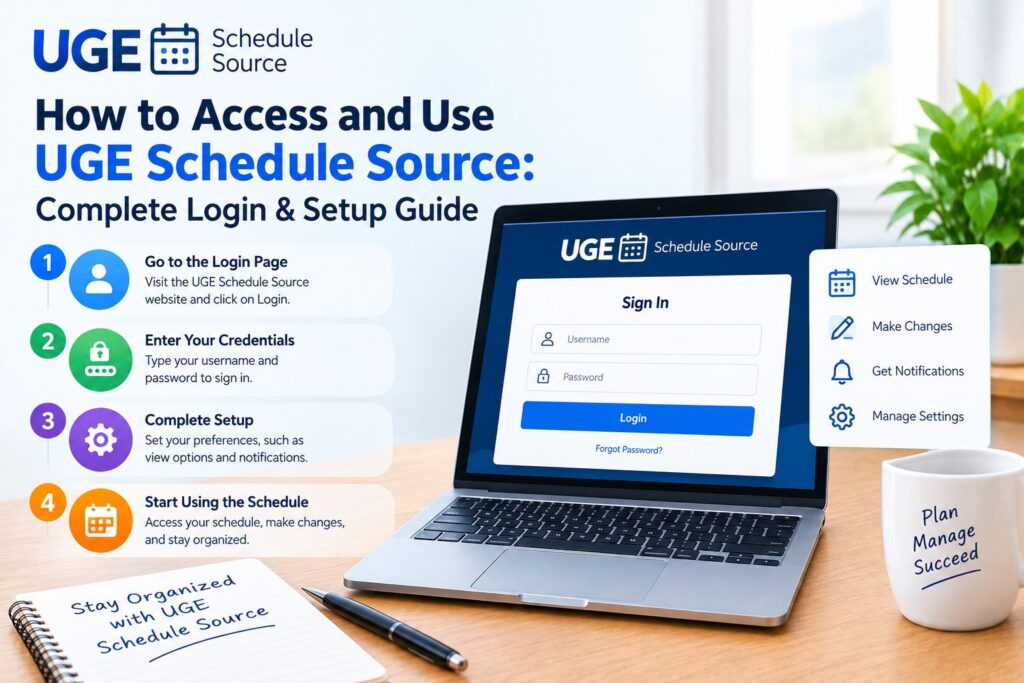
If you’ve been told to “check UGE Schedule Source” for your shifts and you’re not sure where to start, you’re not alone. It’s one of those systems that HR hands you a login for on day one, then never explains again. This guide walks through the actual login process, what to do when it doesn’t work, and how to avoid the fake “login help” sites that show up in search results.
What Is the UGE Schedule Source?
UGE Schedule Source is a cloud-based workforce scheduling platform built on ScheduleSource’s TeamWork system. Organizations with complex, shift-based staffing, like airline ground handling crews, hospitals, and large retail chains, use it to build schedules, track attendance, and manage time-off requests in one place.
The “UGE” in the name traces back to United Ground Express, and you’ll see it used most by airline ground operations staff and their partners, though the underlying TeamWork platform serves plenty of other industries too. If your employer uses it, you’ll interact with it mainly through two things: a web portal and a mobile app.
Before You Log In: What You Need
Gather these three items before you try to sign in:
- Your organization code: A short identifier your employer assigns (not your username)
- Your username or employee ID: Usually provided by HR on your first day
- Your password: Set by you or issued temporarily and changed on first login
If you don’t have all three, contact your scheduling administrator or HR department first. Guessing at any of these fields is the most common reason logins fail.
How to Log In on Desktop
- Go to the login URL your employer gave you. Many organizations use a custom TeamWork address rather than a generic one, so check your onboarding email or ask HR if you’re unsure which URL applies to you.
- Enter your organization code if the login screen asks for one.
- Enter your username or employee ID.
- Enter your password.
- If this is your first login, you’ll be prompted to set a new password immediately.
That’s it. No account creation step, no email verification, just those four fields.
[Image Prompt: Step-by-step visual guide showing 4 login steps: enter organization code, enter username, enter password, and access dashboard.] Vertical layout, numbered circles, blue and white color palette, flat icon design, clean sans-serif labels, white background.
How to Log In on Mobile
- Download the ScheduleSource TeamWork app from the App Store (iOS) or Google Play (Android).
- Open the app and enter your organization’s server key or code, provided by your employer.
- Sign in with the same username and password you use on the web.
- Turn on Face ID or Touch ID in the app settings for faster access afterward.
Once you’re in, the mobile app mirrors most of what the desktop portal offers: viewing shifts, requesting time off, swapping shifts with coworkers, and getting push notifications when your schedule changes.
Fixing Common Login Problems
Most login issues fall into one of these categories:
Wrong or missing organization code. This is the single most common mistake. Your username and password won’t authenticate without it, and it’s specific to your employer, not something you can look up generically.
Browser settings blocking access. The portal needs JavaScript and cookies enabled. If you’re on a work computer with strict security settings, this can silently break the login page.
Single sign-on (SSO) confusion. Some organizations route authentication through their own SSO system instead of the standard TeamWork password screen. If your employer uses SSO, entering a password directly on the TeamWork login page may not work at all, you’d need to go through your company’s identity portal instead.
Expired or reset passwords. If you haven’t logged in for a while, your password may have expired under your organization’s security policy.
If none of this resolves it, your next step is your employer, not a third-party website. Contact your HR department, scheduling administrator, or IT help desk directly.
A Word of Caution on “Login Help” Sites
Here’s something worth being direct about: a search for “UGE Schedule Source login” turns up several independent blogs and “help guide” sites that aren’t affiliated with ScheduleSource at all. Some are harmless (if imprecise) summaries. Others exist specifically to capture login credentials.
Never enter your username or password into a site you found through search unless you can confirm it’s your employer’s actual portal or ScheduleSource’s official domain. If you’re ever unsure, go directly to your employer’s intranet or ask IT for the correct link rather than clicking a search result.
What You Can Do Once You’re In
After logging in, the dashboard typically gives you access to:
- Your current and upcoming shift schedule
- Time-off and availability requests
- Shift swap requests with coworkers
- Attendance and clock-in/clock-out records
- Notifications for schedule changes
Administrators and managers see a broader set of tools on top of this, including schedule building, labor-rule compliance checks, and reporting.