How to Compress a PDF Online Without Losing Quality
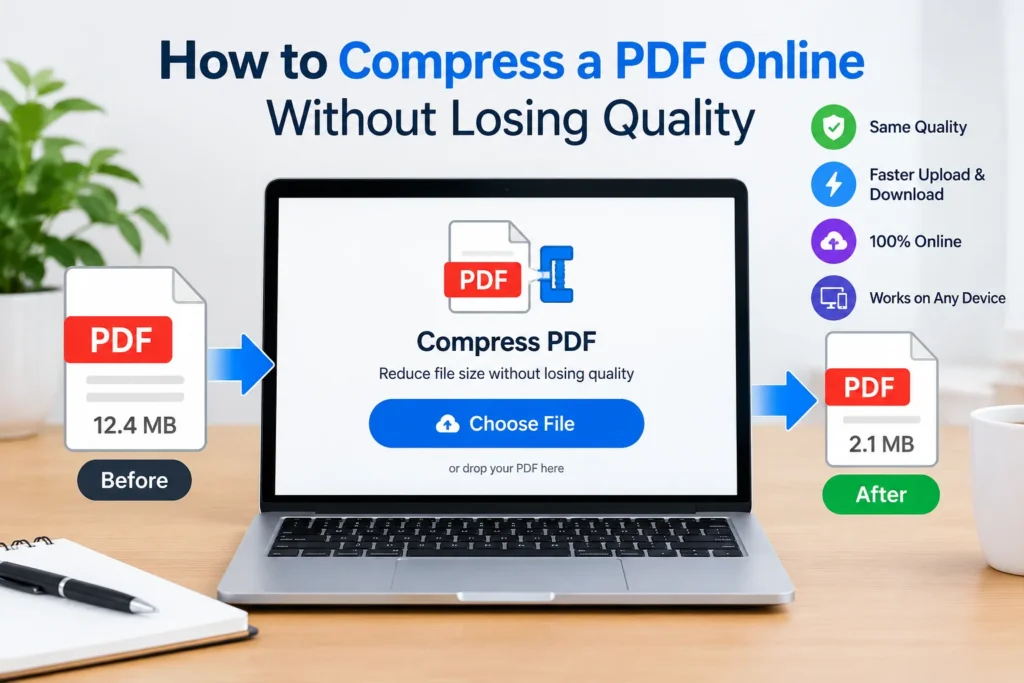
You hit send, and the email bounces: attachment too large. Or a job portal refuses your résumé because the file is over its upload cap. It happens to nearly everyone, and the fix takes about a minute.
To compress a PDF online, you upload the file to a browser-based tool, pick a compression level, and download the smaller copy. Nothing to install. Below, you’ll see how it works, which setting to choose, what to watch for with private documents, and what to try when a file refuses to budge.
What Does It Mean to Compress a PDF?
A PDF gets heavy mostly because of images. Scanned pages, embedded photos, and high-resolution charts take far more room than text does.
Shrinking a file targets that weight. Adobe says the process lowers image resolution, flattens interactive layers, and removes unused metadata, while the visible content stays the same.
Two approaches exist. Lossless methods trim redundant data and leave image detail alone. Lossy methods discard some picture information, which saves more space but can soften photos. Most online tools mix both, and the level you pick sets the balance.
How to Compress a PDF Online in Four Steps
- Open a browser-based compressor. Adobe’s free tool is a solid starting point, and it works in Chrome, Edge, and Firefox.
- Add your file. Drag it into the drop zone or click the select button.
- Choose a level. More on this below.
- Download the result. The tool shows the new size so you can compare it with the original.
That’s it. Check the output before you send it, though. Zoom in on small text, signatures, and any photos.
Which Compression Level Should You Pick?
Adobe’s online tool offers high, medium, and low compression. High gives the smallest file and the biggest quality hit. Adobe’s own advice: choose Medium or Low when you want to keep quality higher.
| Your situation | Try this level. | What to expect |
|---|---|---|
| Text-only contract or form | High | Small file, text stays readable. |
| Report with charts and photos. | Medium | Good balance |
| Portfolio, brochure, or print file | Low | Sharper images, modest savings |
| Hard email size limit | High, then check. | Smallest result; review the images. |
Start in the middle. If the file is still too big, step up a level rather than jumping straight to the extreme.
Is It Safe to Compress Confidential PDFs Online?
Fair question, and the honest answer is, it depends on the provider.
Adobe states that files are removed from its servers and the content is only accessible to you. Smaller or unknown sites may not make that promise, and some don’t explain how long they keep uploads.
For tax returns, medical records, contracts, or anything with ID numbers, read the privacy policy first. Stick with recognized providers. If you can’t verify how a site handles files, use desktop software instead. I’d rather lose five minutes than leak a bank statement.
What to Do When a PDF Won’t Shrink Enough
Some files resist. Here’s what usually helps:
- Scanned documents. Page scans are basically photos. Rescanning at a lower resolution, around 150 dpi, often keeps text readable at a fraction of the size.
- Running it twice. Tempting, rarely useful. Repeated optimization can degrade quality without cutting size further.
- Splitting the file. Two 8 MB parts can pass a limit that one 16 MB file can’t.
- Signed documents. Reducing the size of a digitally signed PDF removes the signature, so compress first and sign afterward.
- Switching tools. Results differ between services. If one stalls, another may do better.
Online Tool or Desktop Software?
For a one-off file, a browser tool wins on speed. For repeat work, desktop software gives you more control. Acrobat’s advanced panel, for example, lets you adjust image downsampling, fonts, transparency, and what gets discarded. It also handles batches.
FAQ: Compress PDF Questions
Q: How can I compress a PDF online for free?
A: Upload it to a free browser-based compressor, choose a level, and download the result. Adobe’s tool is free to use, though with limited use.
Q: Does compressing a PDF reduce quality?
A: It can. Text usually stays sharp, while images may lose detail at higher compression. Medium is a safe default.
Q: How do I get a PDF under 1 MB?
A: Choose high compression, then check the result. If it’s still too big, remove unneeded pages or split the document.
Q: Is there a file size limit?
A: It varies by tool. Adobe’s online compressor accepts files up to 2 GB.
Q: Can I compress a PDF on my phone?
A: Yes. Adobe’s online services run in any browser, including on phones and tablets.
Wrap-Up
Shrinking a PDF is quick once you know the levers: Pick Medium first, protect sensitive files, and don’t expect miracles from scans. Try a tool, check the output, and keep the original.