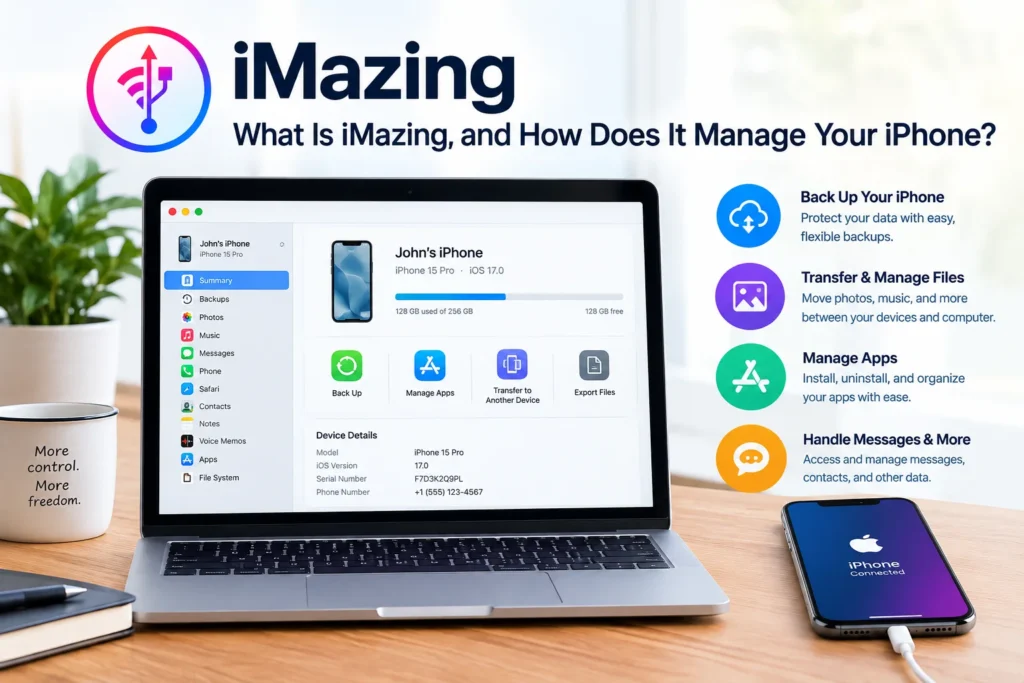
What Is iMazing, and How Does It Manage Your iPhone?
If you’ve ever dug through iTunes or Finder trying to grab a text message thread or move music onto a new phone without wiping everything else, you already know the problem iMazing was built to solve.
iMazing is a desktop app for Mac and Windows that gives you deep, local access to the data on your iPhone, iPad, or iPod touch, without routing anything through iCloud. It’s made by DigiDNA, a Swiss company that’s been building iOS management tools since the first iPhone launched in 2007. This guide walks through what iMazing actually does, how it works under the hood, and how to get started with it.
What Does iMazing Actually Do?
At its core, iMazing is a local iPhone and iPad manager. Apple’s own tools (Finder, the Apple Devices app on Windows, and iCloud) let you back up and sync your device, but they’re deliberately limited in what you can see and export. iMazing fills that gap. A few things it’s commonly used for:
- Backing up and restoring an iPhone or iPad, including scheduled, automatic backups
- Exporting text messages, WhatsApp chats, call history, and voicemail as readable files
- Transferring music, photos, and files between a device and a computer without erasing what’s already there
- Managing apps, contacts, and notes in bulk
- Reinstalling or downgrading iOS versions when needed
Every one of these tasks stays on your computer. iMazing doesn’t have its own cloud, so nothing you export gets uploaded to a DigiDNA server. That local-first design is one of the main reasons IT departments and privacy-conscious users reach for it over cloud-based alternatives.
How iMazing Works Behind the Scenes
An iPhone’s file system isn’t something you can just plug in and browse like a USB drive. Apple keeps most of it locked down. iMazing gets around that in two ways.
For media like photos, videos, and third-party app files, it talks directly to services running on the device. For anything deeper, like message history, call logs, or notes, it pulls the data from a backup. A backup, in this context, is a full snapshot of your device’s current state, made up of thousands of scrambled, unlabeled files. I’mazing’s real job is reading through that mess and turning it into something you can actually click through and search.
Worth noting: iMazing uses Apple’s own backup engine, the same one behind Finder and iTunes backups, so it isn’t reverse-engineering anything shady. It’s also notarized and code-signed by Apple, and it has nothing to do with jailbreaking.
Getting Started with iMazing
Setting it up takes about ten minutes the first time.
- Download and install iMazing from its official site, then launch it on your Mac or PC.
- Connect your device with a USB cable for the first pairing. Wi-Fi works after that, but the initial handshake is more reliable over cable.
- Tap “Trust” on your device and enter your passcode when prompted.
- Your iPhone or iPad should now show up in the sidebar, with sections for Backup, Photos, Messages, Apps, and more.
- Run a first backup before you do anything else. It’s the safety net for every other feature.
From there, iMazing Mini, a small companion app that runs quietly in the background, can handle automatic wireless backups so you’re not stuck remembering to plug in.
Common Mistakes People Make with iMazing
A few things trip up new users more than anything else.
Skipping the first backup. Some people jump straight to exporting messages or transferring files and skip backing up entirely. If something interrupts the process, that backup is your rollback option.
Using a flaky USB cable. Wireless transfers are convenient, but the very first pairing and any large file transfer go faster and more reliably over a cable. A cheap or damaged one is a common cause of connection errors.
Forgetting antivirus software is scanning in real time. Device backups contain tens of thousands of tiny files. Real-time antivirus scanning can create serious bottlenecks and slow the whole process to a crawl. Temporarily excluding the backup folder usually fixes it.
Assuming it’s the same as jailbreaking. It isn’t. iMazing respects Apple’s security model end to end and can’t install apps that aren’t already tied to your Apple account or bypass DRM protections.
iMazing Pricing, Briefly
iMazing has moved to a subscription model. As of mid-2025, the older perpetual device license was discontinued for personal users, and access now runs on yearly subscriptions tied to a set number of device slots (commonly up to 20 devices a year on the Personal/Family plan). Business customers can still get device-based licensing through separate business plans. Because pricing and promotions shift, it’s worth checking iMazing’s own store page for current numbers rather than relying on older screenshots floating around the web.
Who Actually Needs This
If you only ever use one iPhone and back it up to iCloud without a second thought, you probably won’t miss much by skipping iMazing. It earns its keep in more specific situations: switching phones and wanting to bring over everything (or just some things), needing a printed or exported copy of a text conversation for legal or personal reasons, managing several company-owned iPhones at once, or simply wanting a backup that isn’t sitting on someone else’s server.