
What Is Dynamic Access Control, and How Does It Work?
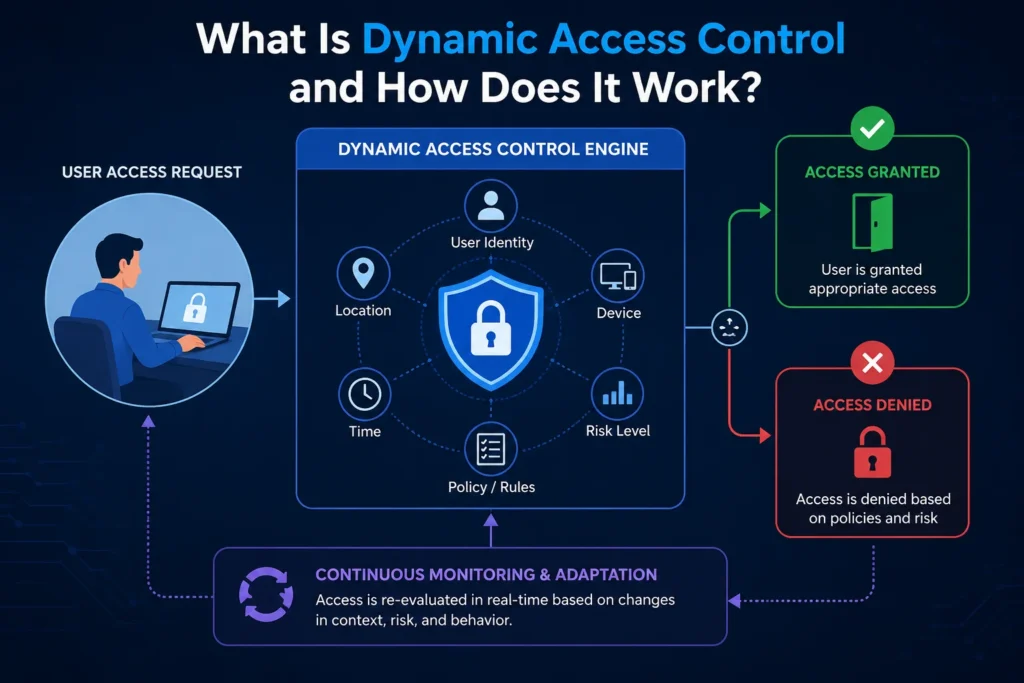
If you’ve ever tried to manage file permissions with nothing but security groups, you already know the problem: groups multiply fast, nobody remembers what half of them are for, and access reviews turn into archaeology. Dynamic Access Control (DAC) was Microsoft’s answer to that mess, and it’s still worth understanding even if your environment predates it.
What Is Dynamic Access Control?
Dynamic Access Control is a set of Windows Server features, introduced in Windows Server 2012, that lets administrators control and audit access to files based on more than just group membership. Instead of “Is this user in the Finance group?” DAC can evaluate conditions like a user’s department, a device’s security posture, and how sensitive a file is, all at the same time.
The result is permissions that adjust automatically. Move someone from HR to Legal in Active Directory, and their access to Legal’s files can update without an admin manually reassigning group memberships.
DAC only works on Windows Server 2012 (and later) domain controllers and file servers. Older clients simply won’t get the dynamic behavior, so mixed environments need planning around which machines actually support it.
The Core Building Blocks
DAC isn’t one feature. It’s four pieces working together.
Claims. A claim is a fact about a user or device, pulled from Active Directory attributes: department, job title, clearance level, device location, and so on. Claims travel with the user’s Kerberos token, so checking a claim is roughly as fast as checking group membership.
Resource properties. These tag files and folders with metadata: “Confidential,” “PII,” and “Contains health records.” Tagging can happen manually or automatically through the File Classification Infrastructure, which scans content for patterns like Social Security numbers.
Central access rules and policies. A central access rule combines claims and resource properties into a condition, something like “allow access if User.Department equals Resource. Department and Device. Compliant equals true.” Several rules bundle into a central access policy that gets applied across file servers from one place in Active Directory, instead of being configured folder by folder.
Conditional expressions. These are the logic that ties it together, similar to an IF statement on an access control list. They let an ACL say “grant access only if X and Y are both true” rather than just listing which groups can read a file.
A Simple Example
Picture two employees, both handling sensitive HR files. One works from a managed office desktop; the other logs in remotely from a personal laptop. With traditional NTFS permissions, if both are in the same security group, both get the same access. With DAC, a central access rule can check the device claim and deny or limit access from the unmanaged laptop, even though both users belong to the same group. No new group needed, no manual reconfiguration.
Why Organizations Adopt It
The main draw is reducing the sprawl of security groups built purely to express one-off access rules. A single central access policy can replace dozens of narrowly scoped groups, and because it’s managed centrally, updates apply everywhere at once.
The second draw is auditing. Central audit policies let you log access to sensitive files based on the same claims and classifications used for access control, which is useful for compliance work under frameworks like HIPAA. You can, for example, log every time someone outside the Health Records group opens a file tagged as containing health information, even if they technically had access.
DAC also integrates with Active Directory Rights Management Services, so sensitive Office documents can get automatic encryption based on how they’re classified. That protection travels with the file even after it leaves the server.
Where DAC Falls Short
It’s worth being upfront about the limitations. DAC requires Windows Server 2012 or newer domain controllers and file servers, so legacy infrastructure is a hard blocker. Setting up claims, resource properties, and central policies also takes real planning; this isn’t a feature you turn on and walk away from. Get the classification rules wrong and you’ll either lock out people who need access or leave sensitive files too open, which somewhat defeats the purpose.
It’s also not a replacement for NTFS and share permissions. DAC layers on top of them as an additional condition, so existing permission structures still need to be sound.
Getting Started
A practical rollout usually looks like this: define which user and device attributes matter as claims, decide how files will be classified (manual tagging for now, automatic scanning later), write a small number of central access rules for your highest-risk data first, and test in a pilot OU before pushing policies domain-wide. Trying to classify everything and write every rule on day one is the most common way these projects stall.







1 thought on “What Is Dynamic Access Control, and How Does It Work?”