
How to Install and Use Equalizer APO on Windows 10 and 11
Windows gives you a volume slider and not much else. If your headphones sound muddy or your laptop speakers sound thin, tweaking one app’s settings won’t fix it. You need an equalizer that works on everything at once. Equalizer APO does that, and it’s free. Here’s how to install it, set it up, and dodge the usual snags.
What Is Equalizer APO?
Equalizer APO is a free, open-source parametric equalizer for Windows. It applies equalization to all Windows audio, includes a graphical configuration editor, and saves settings in a text file format. Games, browsers, and music players all get the same treatment because the equalizer sits inside the Windows audio chain. Plain-text configs also mean you can share a preset by pasting a few lines.
How to Install Equalizer APO
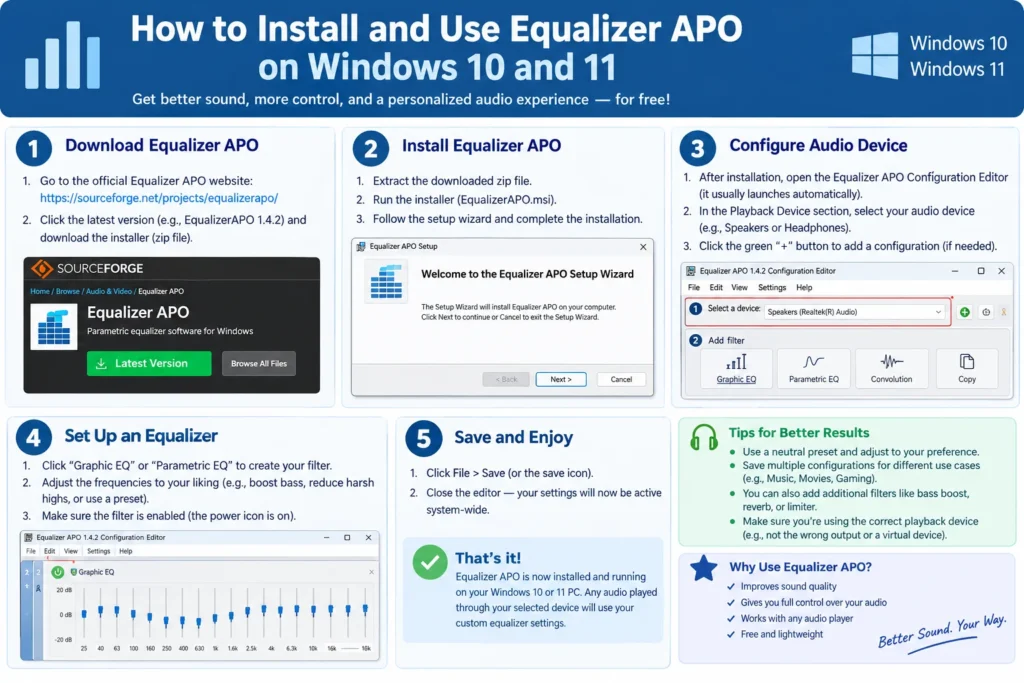
First, grab the installer from the official SourceForge page. The current download is version 1.4.2, a 12 MB 64-bit file. Skip random mirror sites.
Next, run the setup. Since version 1.3, the program needs Universal CRT, so older Windows builds may need extra updates, though the installer offers help with that.
When the configurator opens, tick the output device you actually listen through, such as your headphones or speakers. Checking everything is a common mistake. Then restart Windows so the audio change takes hold.
Build Your First EQ
Open the Configuration Editor from the Start menu. You’ll see a frequency graph and a list of filters. Add a Peak filter, then set a frequency, a gain in decibels, and a Q value that controls how wide the change is.
Start small. Cutting a harsh spot around 3 to 4 kHz by 2 dB often beats boosting bass by 8. And here’s the part beginners skip: set a negative preamp, roughly equal to your biggest boost. Boosted bands can push the signal past 0 dB, which causes crackling. A preamp of -4 dB fixes that fast. Honestly, trust your ears over any preset, since every headphone and room differs.
Add Peace for an Easier Interface
The default editor is functional but plain. Peace is a popular front end, and one community-maintained listing says Equalizer APO must be installed first. That same page notes it isn’t officially tied to the original developers, so download it only from sources you trust.
Common Problems and Fixes
No change in sound? Confirm your device is ticked in the configurator. Then open Windows sound settings and turn off exclusive mode for that device, because apps with exclusive control bypass the equalizer.
Crackling after a big boost? Lower the preamp.
Crashes on an older processor? Update. Version 1.4.2 fixed an FFTW loading failure on CPUs without AVX support that began in 1.4.1.
Broken after a Windows upgrade? Rerun the Configurator. The changelog mentions registry checks added to revive the program after an OS upgrade.
FAQ
Is Equalizer APO safe? Yes, when downloaded from the official SourceForge page. The code is open source, so anyone can inspect it.
Does it lower audio quality? Not by itself. Heavy boosts without a negative preamp cause clipping, which sounds bad.
Does it work on Windows 11? It’s widely used there, but check the project wiki if your build acts up.






1 thought on “How to Install and Use Equalizer APO on Windows 10 and 11”