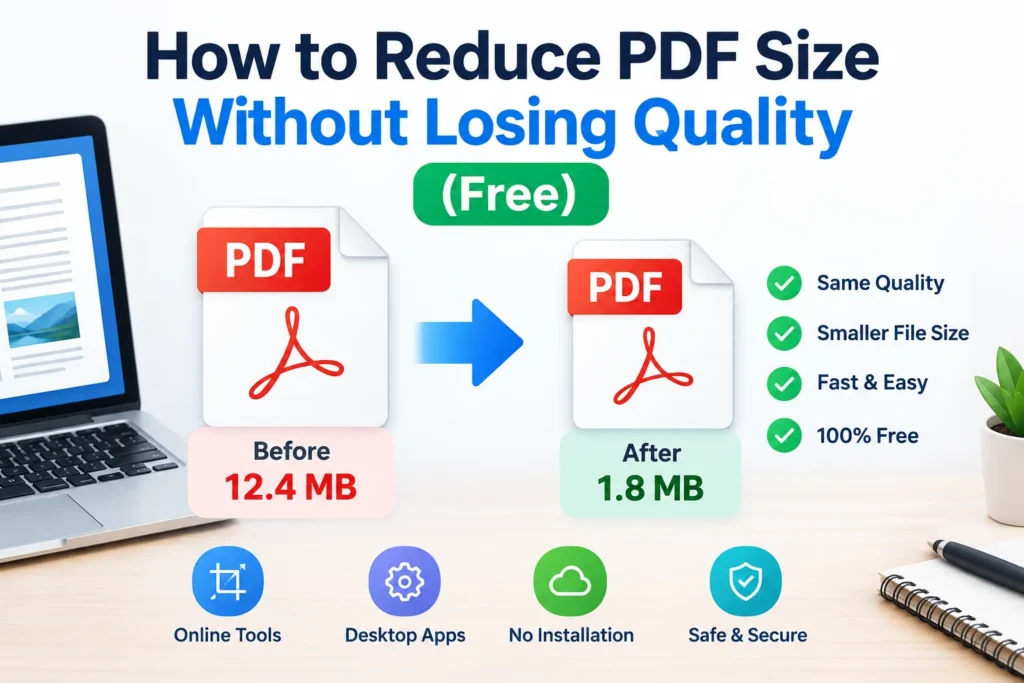
How to Reduce PDF Size Without Losing Quality (Free)
What Does a PDF Size Reducer Actually Does?
A PDF size reducer rewrites the file so it takes up less storage. Nothing magical happens. Most tools pull three levers.
Image downsampling. Photos and scans are the heaviest parts of most PDFs. A tool lowers their resolution, measured in DPI (dots per inch), so each image holds fewer pixels. Dropping from 300 DPI to 150 DPI roughly quarters the pixel count of an image.
Lossy and lossless compression. Lossless compression repacks data without throwing anything away, like zipping a folder. Lossy compression discards detail the eye is unlikely to miss, which is how you get big savings. Most compressors mix both.
Cleanup. Embedded fonts, hidden metadata, thumbnails, and duplicate objects all add weight. Stripping them costs you nothing visible.
Why Is Your PDF So Big in the First Place?
Before you compress anything, it helps to know the culprit. Four things cause most bloated files.
Scanned pages saved at high resolution are the worst offender. A 20-page scan at 600 DPI can easily pass 50 MB. Next come full-resolution photos pasted into slides or Word files. After that, embedded fonts (especially several of them), and finally leftovers like editing history from previous saves.
Here’s the useful part: the fix depends on the cause. A scan needs image compression. A text-heavy report with a few logos barely needs anything. Check what’s inside your file before reaching for the strongest setting.
Method 1: Use a Free Online PDF Compressor
Best for: quick jobs, any device, non-sensitive files.
- Open a free online compressor (Adobe offers one, and several other reputable sites do too).
- Upload your PDF.
- Choose a level. “Medium” or “Recommended” is the right starting point.
- Download the smaller file and open it to check the pages.
The catch is privacy. You’re sending your document to someone else’s server. For a lunch menu, who cares. For a tax return, a contract, or an ID scan, skip this method and use one of the offline options below. Read the site’s retention policy if you aren’t sure; most state how long files are kept.
Method 2: Mac Preview (Offline, Built In)
Best for: Mac users who want zero installs.
Open the PDF in Preview, choose File, then Export, and pick the “Reduce File Size” option under Quartz Filter. Save it as a new file.
A warning, because this one trips people up. The built-in filter is aggressive. It can turn crisp images muddy, and sometimes the result is smaller than it needs to be. Always export a copy rather than overwriting your original, and look at every page before you send it anywhere.
Method 3: Adobe Acrobat (Most Control)
Best for: people who already have Acrobat and want to choose exactly what gets squeezed.
In Acrobat, go to File, then Save as Other, then Reduced Size PDF. That’s the one-click route. For finer control, use the Optimize PDF tool, where you can set image resolution, remove embedded thumbnails, and unembed fonts you don’t need. Adobe’s own help documentation walks through each option and is worth bookmarking if you’ll do this often.
The downside is cost. Full Acrobat is a paid product, so for a one-off task the free methods make more sense.
Method 4: Export Smaller Files From Word or Google Docs
Best for: documents you still have in editable form.
Here’s something most guides skip: it’s often easier to prevent a heavy PDF than to fix one. In Word, choose Save As, pick PDF, and select “Minimum size (publishing online)” before saving. Word downsamples the images during export, so you never create the bloated version at all.
If your source file is full of huge photos, compress the pictures inside Word first (Picture Format, then Compress Pictures) and export after that. Two passes, much better result.
Which PDF Size Reducer Should You Use?
| Method | Best for | Quality control | Privacy | Cost |
|---|---|---|---|---|
| Online compressor | Fast, any device | Low to medium | Files leave your computer | Free (limits apply) |
| Mac Preview | Mac users, offline | Low | Stays on your Mac | Free |
| Adobe Acrobat | Precise settings | High | Stays on your computer | Paid |
| Word export | Editable source files | Medium | Stays on your computer | Included with Word |
My blunt take: for sensitive files, use Word export or Acrobat. For everything else, an online tool at the medium setting is the least effort. Mac Preview works, but treat its output with suspicion until you’ve checked it.
How Small Does Your PDF Need to Be?
Good question, and the answer depends on where the file is going.
Gmail caps attachments at 25 MB, according to Google’s own Gmail help pages; larger files get converted to Google Drive links instead. Many job and university application portals set much tighter limits, so check the upload instructions on the form itself before you compress. Hitting the limit with a little room to spare is the goal. Squeezing a file to 200 KB when the limit is 5 MB just damages the pages for no reason.
A rough guide to settings:
- Screen viewing and email: 150 DPI images are plenty.
- Office printing: stay near 200 to 300 DPI.
- Archived scans you may need to read closely: keep the original and make a compressed copy.
Mistakes That Ruin Compressed PDFs
Overwriting the original. Always save a new copy. You can’t get lost detail back.
Compressing twice. Running a file through two tools stacks the quality loss. Pick one good pass.
Picking “maximum compression” by default. It’s tempting. It also turns signatures and small print into mush.
Skipping the check. Scroll through every page after compressing. Look at stamps, signatures, tables, and anything handwritten.
Ignoring the real cause. If one oversized image is responsible for 40 MB, fixing that image beats any generic setting.
FAQ: PDF Size Reducer Questions
Q: Does reducing PDF size lower the quality? A: Usually a little. Lossy compression lowers image resolution, which can soften photos and scans. At a medium setting, the change is rarely visible on screen, but check every page.
Q: How can I reduce a PDF to under 1 MB? A: Try compressing at a stronger setting, lower the image resolution to around 100 to 150 DPI, and remove unused pages. If it’s still too large, split the file into two parts.
Q: Is it safe to use an online PDF compressor? A: It’s fine for non-sensitive files. For contracts, financial records, or ID documents, use an offline method so the file never leaves your device.
Q: Can I compress a PDF for free without installing anything? A: Yes. Browser-based compressors work on any device, and Mac Preview and Word’s export option are already on many computers.
Q: Why is my PDF so large? A: High-resolution scans and unoptimized images account for most of it. Embedded fonts and leftover metadata add smaller amounts.
Q: Can I compress a PDF on my phone? A: Yes. Online compressors run in a mobile browser, and many phones offer a scan setting that creates smaller files from the start.
Your Next Step
Pick the method that matches your file, compress a copy, then scroll through every page before you hit send. That’s the whole routine. If a file refuses to shrink enough, split it or fix the oversized images at the source.
Sources worth bookmarking: Adobe Acrobat’s help documentation on reducing PDF file size, and Google’s Gmail Help page on attachment size limits.