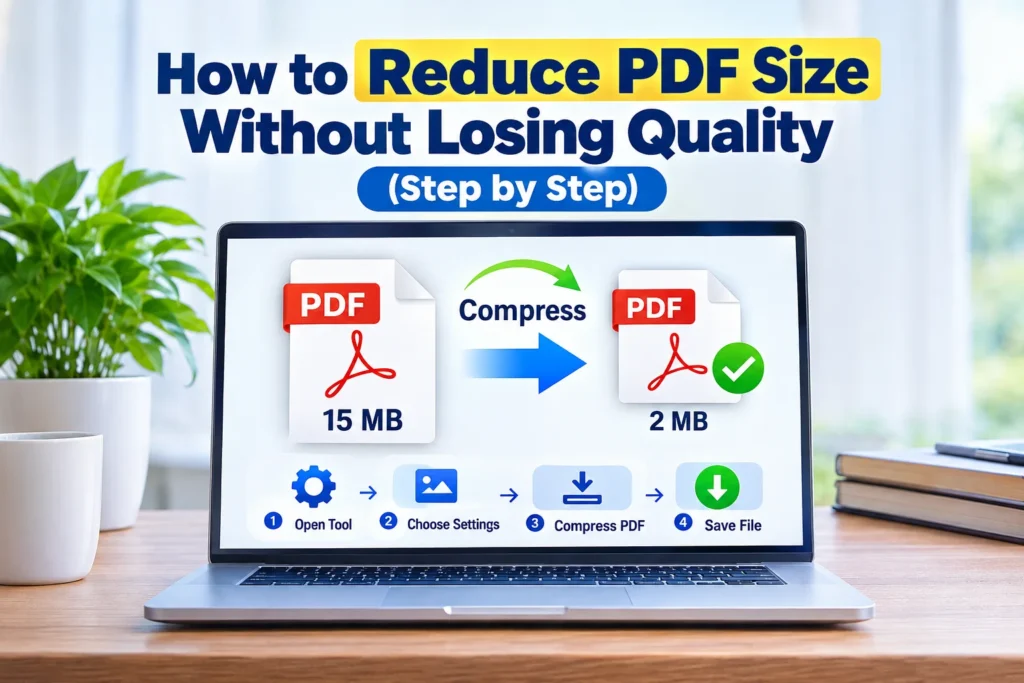
How to Reduce PDF Size Without Losing Quality (Step by Step)
The email bounces back: “Attachment too large.” Or a job portal refuses your application because the file tips past its 5 MB cap. It’s maddening, especially when the document is only a few pages long.
Good news, though. You can reduce PDF size in a minute or two, and on screen most people won’t spot a difference. Below are six methods, from free browser compressors to Adobe Acrobat and Mac Preview, plus a plain explanation of why PDFs get heavy.
What’s the Fastest Way to Shrink a PDF?
Upload the file to a free online compressor, choose medium compression, and download the result. Handling something private? Stay offline with Acrobat’s Reduce File Size command or the Quartz filter in Mac Preview. Your savings depend on what’s inside the file, since image-heavy PDFs shrink far more than text-only ones.
Why Is Your PDF So Big in the First Place?
Pictures. That’s usually the culprit. A scan saved at 600 DPI (dots per inch) can outweigh the rest of a 40-page report combined, because every page is stored as a dense image instead of lightweight text.
Images aren’t the only suspect. Acrobat’s advanced settings are grouped around images, fonts, transparency, hidden objects like thumbnails, and user data such as comments, which makes a handy checklist of where bulk hides. Knowing which one applies to your file tells you what to fix first.
A rule of thumb: screens look fine at 150 DPI, while print generally wants 300. Anything beyond that is mostly dead weight.
Method 1: Use a Free Online PDF Compressor
This is the quickest route, and it works on a phone as easily as a laptop. Smallpdf, iLovePDF, and PDF2Go all follow the same pattern:
- Open the compressor in your browser.
- Upload or drag in the file.
- Pick a level. Medium suits most documents; “strong” shrinks more but can blur images.
- Download the new file and flip through the pages to check it.
One catch deserves a pause. Your document travels to someone else’s server. For a flyer, fine. For a tax return, contract, or anything with ID numbers, skip this method and use an offline one below.
Method 2: Reduce File Size in Adobe Acrobat
With Acrobat Pro, you get the most control. On Windows, open the menu and choose Save as Other, then Reduced Size PDF; on a Mac, the same command sits under the File menu. A dialog asks which version the file should stay compatible with. Pick one, confirm, and save.
Dartmouth’s IT documentation explains what happens behind the scenes: images get resampled and recompressed, fonts are trimmed to the characters actually used, and the document’s internal structure is cleaned up.
Want finer control? Try Save as Other > Optimized PDF. It offers panels for images, fonts, transparency, discarded objects, and discarded user data, so you can lower image quality deliberately instead of guessing.
Fair warning: shrinking a digitally signed document removes the signature. Compress first, and sign afterward.
Method 3: Compress a PDF in Preview on Mac
No download needed. Open the PDF in Preview, choose File > Export, pick Reduce File Size from the Quartz Filter menu, and click Save. Give the export a new name so your original stays untouched.
Apple notes that quality may be lower than the original. I’d add a caveat of my own: the default filter is blunt. Mac users in Apple’s community forums describe soft-looking results and some text-based PDFs that barely shrink at all. If the output looks muddy, try the checkbox options in the same Export dialog, or move on to another method.
Method 4: Export a Lighter PDF Straight from Word
Got the source document? Fix the problem there. In Word, go to File > Save As (or Export), choose PDF, and select the Minimum size option before saving. For a bigger drop, compress the pictures inside the Word file first (Picture Format > Compress Pictures).
Working at the source beats squeezing a finished PDF, because you avoid compressing the same images twice. Menus shift between versions, so check yours if a label looks different.
Method 5: Shrink the Images Before You Build the PDF
Scanning paper? Adjust the scanner settings rather than repairing the result later. For plain text pages, 200 DPI in grayscale or black and white is typically readable and far lighter than a 600 DPI color scan.
Photos deserve the same treatment. A 6,000-pixel camera shot placed in a 4-inch frame carries pixels nobody will ever see, so resize it first. Screenshots saved as PNG can also run large; a JPEG version is usually smaller for photographic content.
Method 6: Remove Extras or Split the File
Blank pages, duplicate appendices, old comments, embedded attachments. They pile up quietly. Delete extra pages first, then use Acrobat’s discard options, which cover embedded thumbnails, search indexes, comments, forms, and multimedia. Two minutes here may spare you heavier compression.
Still too big? Split the document into Part 1 and Part 2. It’s not glamorous, but it works every time, and a recipient with a strict upload limit will thank you.
Which Method Should You Pick?
| Your situation | Best option | Quality risk |
|---|---|---|
| Quick, non-sensitive file | Online compressor | Low to medium |
| Confidential document | Acrobat or Preview | Low to medium |
| You have the Word file. | Export with minimum size. | Low |
| Scanning paper regularly | Lower scanner DPI | Low |
| Hard upload cap | Strip extras, then split. | None |
Common Mistakes to Avoid
Compressing again and again. Repeating the process can degrade quality without saving more space, as one university guide to Acrobat points out. Compress once, check the result, and stop.
Overwriting the original. Always save under a new name. If the first attempt looks poor, you’ll want a clean copy to retry.
Using maximum compression on print files. Text may stay sharp while photos turn blocky on paper. Match the setting to the purpose.
FAQ: Reduce PDF Size Questions
Q: How can I reduce PDF size without losing quality?
A: Start with changes that don’t touch image sharpness: delete unused pages, strip comments and thumbnails, and trim embedded fonts. If that’s not enough, apply mild image compression and compare the result against the original.
Q: How do I get a PDF under 1 MB?
A: Combine tactics. Lower the image resolution to around 150 DPI, switch the scans to grayscale, remove extra pages, and then split the file if it’s still over the limit.
Q: Are free online PDF compressors safe?
A: They’re fine for non-sensitive files, though your document is uploaded to an outside server. For contracts, financial records, or ID documents, use Acrobat or Preview offline.
Q: Why did my PDF get bigger after compressing?
A: The file may already be tightly compressed, or the filter re-encoded images inefficiently. Mac users have reported outputs that came out larger than the original. Try a different method or setting.
Q: Can I reduce PDF size on my phone?
A: Yes. Open an online compressor in your mobile browser, or use a PDF app with a built-in compress option.
Your Next Step
Match the method to your file: online compressor for speed, Acrobat or Preview for privacy, and Word export when you own the source. Check the result before sending, and keep the original safe. Need to go even smaller? Combine two methods rather than pushing one setting to the extreme.