
PDF to Word Converter: Pick the Right One for Your File
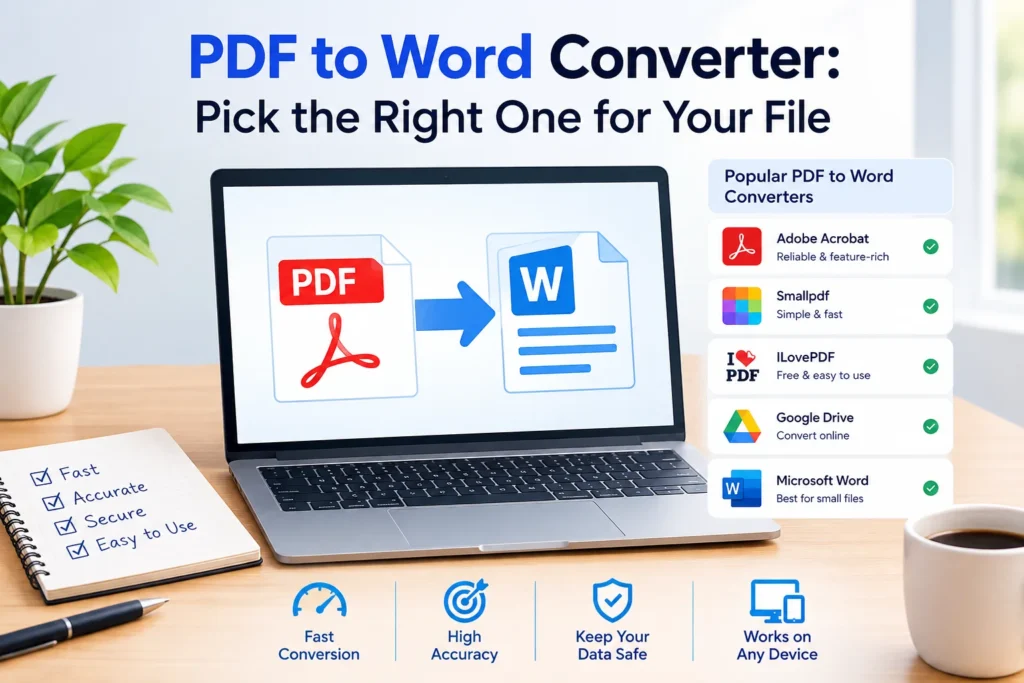
You’ve got a PDF, and one paragraph needs changing. Maybe it’s a client contract, a class handout, or an old résumé whose Word file vanished two laptops ago. Retyping the whole thing is a lousy way to spend an afternoon.
A PDF to Word converter solves that by turning the file into an editable DOCX. The catch? Results vary wildly. Some tools return a near-perfect copy, while others scramble columns and bury your tables. Here’s how the main options compare, so you can choose before you upload anything.
What a PDF-to-Word Converter Actually Does
A PDF remembers where every line sits on the page. It doesn’t remember paragraphs, styles, or table structure. So any tool that converts PDF to Word has to guess: this cluster of text is a heading, those aligned lines are a table, and that block is a two-column layout. Word’s DOCX format works the opposite way: it stores flowing text, which is exactly why editing becomes possible.
Clean, text-heavy files make the guessing easy. Scans, tricky columns, and heavy graphics don’t. Microsoft itself admits that not every PDF converts perfectly, which is worth keeping in mind before you promise a client a flawless edit.
Four Ways to Convert PDF to Word, Compared
| Method | Cost | Best for | Watch out for |
|---|---|---|---|
| Online tool | Free tiers | Quick one-off files | Daily limits, paid OCR |
| Microsoft Word | Included with Word | Text-heavy files, no upload | Layout shifts on complex pages |
| Google Docs | Free | Simple files, no Word installed | Long files with images |
| Desktop PDF software | Paid | Batches and scans | Price |
Web-based tools are the fastest route. Smallpdf’s free option needs no sign-up, though OCR for scanned files sits behind its Pro plan, and Adobe’s free page caps daily use. PDF24 and PDF2Go sit in the same camp.
Word itself is the sleeper pick. Choose File, then Open, select the PDF, and Word rebuilds it as an editable document with no extra downloads.
Google Docs works as well: upload the file to Drive, open it with Docs, then download a .docx. A Stony Brook University IT guide warns that this route may handle long documents with images less well than Word does. It’s handy on a Chromebook, though.
Paid desktop software earns its price only if you convert files weekly or process scans in bulk.
What to Check Before Picking a Tool
Four questions narrow the field fast. Does it offer OCR if your file is scanned? Does it cap file size or daily conversions? Where does the file go, and how long does it stay there? Can you preview the output before paying? Free tools usually answer the first two well and the last two vaguely, so read the retention policy. A site that hides its limits until after you’ve uploaded is telling you something about the rest of the experience. Check the output format too. DOCX opens in Word, Google Docs, and most other editors, while old DOC files can bring compatibility headaches.
How to Convert a PDF to Word in Five Minutes
- Copy the PDF first, so the original stays untouched.
- Open Word, pick File, then Open, and select the copy.
- Click OK when Word warns it will rebuild the file as editable text. Big files take a while.
- Scan the result before editing: tables, columns, images, and page breaks.
- Save it as a .docx.
Using a web tool instead? Upload, convert, download, then run the same check from step 4.
What About Scanned PDFs?
A scanned PDF is basically a photograph of text. Nothing can edit it until OCR (optical character recognition) reads the letters. Pick a tool that lists OCR outright, scan at a decent resolution (300 dpi is the usual target), and plan to proofread. Handwriting is another story; most tools struggle with it, so treat any result as a rough draft. Drew University’s IT team tells staff to expect errors, including mix-ups between the letters “i” and “l.”
Is It Safe to Upload Your PDF?
Depends on the file. Microsoft points out that some online converters send documents to third-party servers, where your control over the content can be unclear. Smallpdf says it deletes files an hour after processing and holds ISO/IEC 27001 certification, which is reassuring, though it’s still the company’s own claim.
My rule: tax forms, contracts, and anything with ID numbers stay on your own machine, so those go through Word. Public brochures can go anywhere. If you must upload something sensitive, confirm the page uses HTTPS and look for a published deletion policy before you drop the file in.
Quick Fixes When the Layout Breaks
Columns collapsed? Convert one page at a time. Fonts swapped? Install the original typeface or live with the substitute. Images jumping around? Set them to “In line with text” in Word, then drag them back. Pages turned sideways? Rotate them before converting, since Drew’s guide says Word’s conversion can’t handle sideways pages. If a table turns into floating text boxes, copy its contents into a fresh Word table instead of fighting the layout.
Three Mistakes to Avoid
Three slip-ups show up constantly. People convert their only copy of a file, then overwrite it. They skip proofreading and send a document with broken tables. And they upload sensitive files to the first free site that appears in search. Each one takes seconds to avoid, and each can cost hours when it goes wrong.
Which Option Should You Choose?
Start with Word if you own it. It’s free, private, and decent with plain text. Move to an online tool when the layout is complicated or the file is scanned. Reserve paid software for people who do this all day. Honestly, the best converter is the one that doesn’t need you to upload anything.
Students working from course PDFs can usually stay in Word or Google Docs. Freelancers handling client files should lean toward local conversion. Offices processing stacks of scans are the ones who benefit from a paid plan.
FAQ: PDF to Word Converter Questions
Can I convert PDF to Word for free?
Yes. Word, Google Docs, and the free tiers of several web tools all work, with limits on file size, daily use, or OCR.
Will the formatting stay the same?
Rarely, to the letter. Simple documents come through well, but tables, columns, and graphics usually need cleanup.
Can I convert a scanned PDF into an editable file?
Yes, but only with OCR. Check the output carefully for misread characters.
Is converting online safe?
It depends on the provider and the document. Keep sensitive files local, and look for stated deletion policies and security certifications.
Can I do this on my phone?
Yes, through browser-based tools or mobile apps, though a layout-heavy file is easier to fix on a desktop.
Pick the method that matches the file, not the one with the loudest homepage. Test a single page first, check the tables, and keep the original PDF safe. If it looks right, you’ve just saved yourself an afternoon of retyping. Not sure? Try Word first. Bookmark this guide for the next time a stubborn PDF lands in your inbox.





1 thought on “PDF to Word Converter: Pick the Right One for Your File”