
How to Use KaneAI for Smarter Software Testing
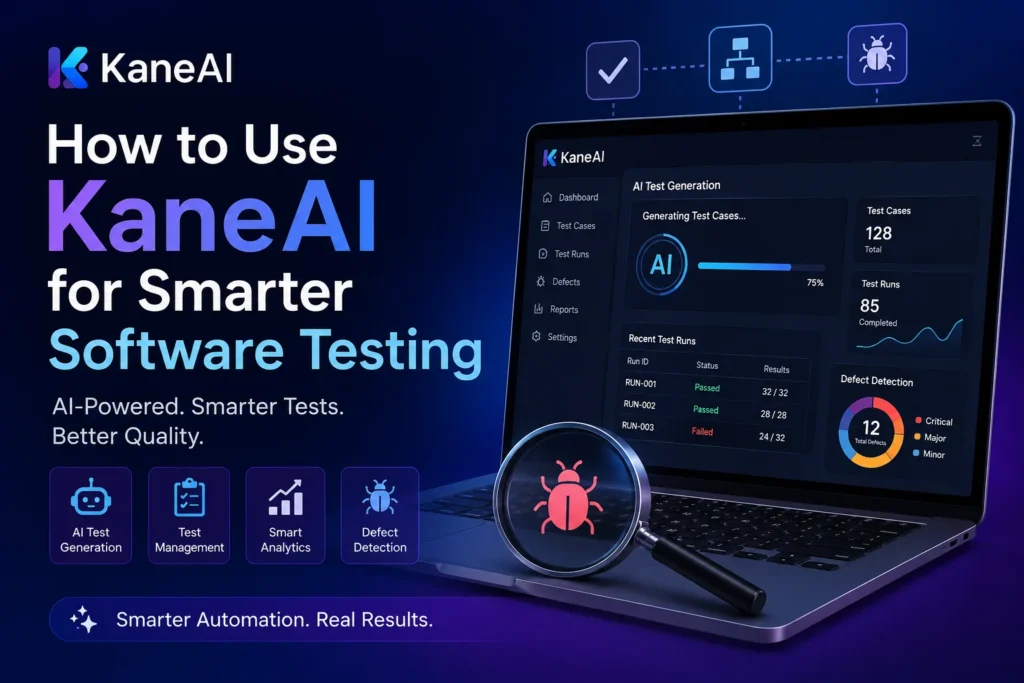
If you’ve spent hours writing and rewriting Selenium scripts every time a button moves three pixels to the left, you already know the pain KaneAI is built to solve. It’s an AI-native testing agent from LambdaTest that lets you create, run, and maintain automated tests using plain English instead of code.
Here’s how it actually works and how to get it running in your own workflow.
What Is KaneAI, Exactly?
KaneAI is a generative AI testing agent. Instead of writing test scripts line by line, you describe what you want tested, in normal sentences, and the tool translates that into an executable test. Think “log in with valid credentials and check the dashboard loads” rather than fifty lines of Selenium.
It covers web, mobile, and API testing, and it’s built to evolve tests automatically as your app changes. When a button gets renamed or a form field moves, KaneAI can adjust the test instead of just failing it and leaving you to fix it manually.
That matters because test maintenance eats up a huge chunk of QA time. Teams often spend more hours patching broken tests than writing new ones. An agent that self-heals those tests is solving a real, expensive problem, not just a theoretical one.
Getting Started: Step-by-Step
Step 1: Create Your Account
Head to LambdaTest’s website and sign up, or log in if you already have an account. KaneAI lives inside the LambdaTest dashboard, so there’s no separate app to install.
Step 2: Activate KaneAI
Once you’re logged in, find KaneAI in your dashboard menu and activate it. You’ll land on a workspace where you can start describing your first test.
Step 3: Connect Your Repository
Link KaneAI to GitHub, GitLab, or Bitbucket. This lets it scan your codebase and, in some cases, suggest starting test cases based on what it finds. Not required, but it saves setup time if your app is already source-controlled.
Step 4: Write Your First Test in Plain English
This is where KaneAI actually earns its keep. Instead of code, you type something like
- Go to the login page
- Enter a valid username and password
- Click “Sign In”
- Confirm the dashboard is visible
KaneAI converts that into a working automated test. You can preview each step, tweak the wording if it misinterprets something, and rerun until it behaves the way you expect.
Step 5: Run Across Browsers and Devices
Because KaneAI sits on top of LambdaTest’s cloud grid, you’re not limited to one browser or OS. You can run the same test across different browser and device combinations, and for mobile apps, upload an APK or IPA and test on real Android and iOS devices.
Step 6: Set Up Integrations
Connect Jira if you want test plans and cases synced with your project management workflow. Slack and Microsoft Teams integrations are also available, so failures or updates show up where your team already talks. For CI/CD, KaneAI plugs into existing pipelines rather than forcing you to build a new one.
What Makes It Different From Traditional Automation Tools
No coding barrier. QA folks who aren’t strong programmers can write real, executable tests. That opens automation up to people who used to be stuck doing everything manually.
Self-healing tests. Minor UI changes don’t automatically break your suite. This alone cuts down a lot of the “why did this pass yesterday” debugging.
Script export. If your team eventually wants full code control, KaneAI can generate scripts in formats like Selenium with Java, so you’re not permanently locked into the natural-language layer.
Cross-layer coverage. It’s not just UI testing. KaneAI extends into API validation and backend checks, which is useful if your app logic lives mostly server-side.
A Few Honest Limitations
It’s not magic. Natural language test creation still needs precise, unambiguous instructions, vague prompts produce vague tests. Complex, highly conditional test flows sometimes need manual adjustment after the AI generates its first draft. And like any AI-assisted tool, results improve with practice as you learn how to phrase steps the way the model expects.
If your team is deep into a mature, highly customized Selenium framework already, the switch will take some adjustment time. It’s most valuable for teams that are scaling testing fast and don’t want every new feature to mean another few hundred lines of script.
FAQ
Is KaneAI free to use? LambdaTest offers KaneAI as part of its platform, with different plans depending on usage and team size. Check LambdaTest’s pricing page for current tiers.
Do I need coding experience to use KaneAI? No. Tests are created in plain English. Coding knowledge helps if you want to fine-tune generated scripts, but it isn’t required to get started.
Can KaneAI test mobile apps? Yes. You can upload an APK or IPA file and run tests on real Android and iOS devices through LambdaTest’s device cloud.
Does KaneAI replace QA engineers? No. It automates the repetitive parts of test creation and maintenance so QA teams can spend more time on strategy, edge cases, and exploratory testing.
What happens when the app UI changes? KaneAI’s self-healing feature tries to adapt existing tests automatically. For bigger changes, you’ll likely still need to review and adjust the test manually.
Can I export KaneAI tests as code? Yes, KaneAI supports exporting tests to formats like Selenium Java, so teams aren’t locked into the no-code interface long-term.
Where This Fits in Your Testing Strategy
KaneAI isn’t a full replacement for a testing strategy; it’s a way to speed up the part of testing that’s historically been slow and tedious: writing and maintaining scripts. Pair it with good test planning and human review of critical flows, and it can meaningfully cut down the time between “feature shipped” and “feature verified.”
If you’re evaluating it, the best move is just to try it on one real workflow, your login flow or a core checkout path, and see how much of the maintenance burden it actually removes before rolling it out further.







1 thought on “How to Use KaneAI for Smarter Software Testing”